Set up your PLATO Course for the New Semester
To set up your PLATO course at the start of each semester, you will first log into PLATO.
Once you are officially scheduled to teach a course, it will show up in PLATO in the My Courses widget. You may have to sort by term to see the new course. If you don’t see your course listed, please check with your department chair to be sure you are the official instructor of record. If you are the instructor of record and still don’t see the course please contact the Technology Support Desk for assistance.
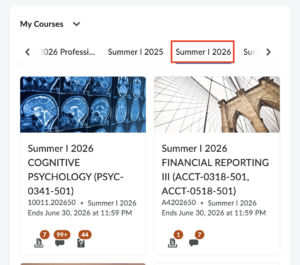
To set up your new course for the semester, you can click into that course and add in the WSU 15 Week Template for a new prep OR copy in previous content.
- To add in the WSU 15 Week Template go to Course tools and select Import WSU Template.
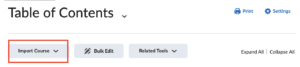
- To copy in previous content, click on Content in the blue nav bar, then click on Table of Contents and Import Course, and Copy Existing Course. Follow the instructions there to complete the process.
If you would like more detailed steps for this process find the Training course in your My Courses widget, you may have to sort by All or Always Open to find it. You will find instructions for these processes in PART 2 of the training course!
If you need help with this process, please call us at 413-572-8130, submit a Help Ticket at the PLATO Help Desk, or send an email to cit@westfield.ma.edu!
If you are new to PLATO/Brightspace if is highly recommended that you complete the training course before using this system.
If you are scheduled to teach in the Online, Hybrid or Remote Sync format you will need to complete the Web Camp Training if you have not done this already.