Set up your PLATO course for the new semester
Each semester the instructor of record will automatically be loaded into the courses they are officially scheduled to teach. If you do not see your courses in PLATO, please check with the registrar to be sure your are the official instructor of record in that course.
Your new courses will be blank in PLATO, so you will need to import either the WSU 15 Week Template if you are building a new prep OR you can copy in your previous course content. You can only do this with courses that you are the official instructor in.
NOTE: Importing content will add all content ON TOP of any content that is already in the course. Duplicate information needs to be deleted manually and is a tedious process, so please do not do this more than once in one course.
Add the WSU 15 Week Template
If you are building a new course from scratch you will want to add the WSU 15 Week Template to your course. This template was designed to give consistency to all courses and ease of use for instructors and students.
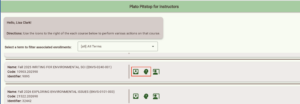
In your new course, click on Course Tools, and select PLATO Pitstop. The first icon will allow you to copy in the 15 Week Template, the second icon (looks like a person’s head), will allow you to add a Demo Learner into your class. You can do this for all of your classes right from this dashboard.
Copy in your previous content
Quick Video: Copy Your Previous Content into your Upcoming Course
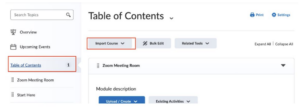
To add your previous content, click into your blank course shell, (the course you would like to copy content into), and click on “Content” in the blue nav bar, then “Table of Contents.” Then click on “Import Course“
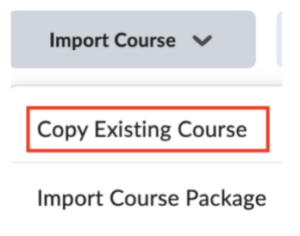
and then click on “Copy Existing Course.”
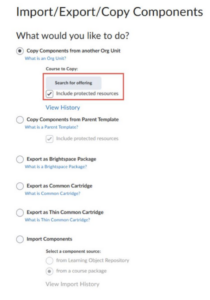
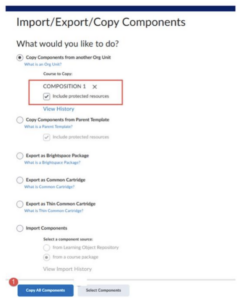
Select the “Copy Components from another Org Unit” option and click the “Search for Offering” button – be sure to leave the “include protected resources” box checked.
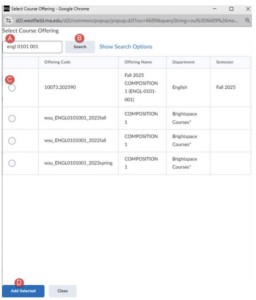
4. Then you will search for the course offering that you would like to copy from.
- You will need to type in the course number or name to find the one you want.
- Click SEARCH
- Select the course section and term that you would like to copy from (be sure it is the correct previous content).
- Click the “Add Selected” button at the bottom.
Once you select the course, you will see it listed under the Copy Components area. Then click on the “Copy All Components” button at the bottom of that screen.
You will see the progress bar, and it will let you know when the copy has completed.

Then you can click back into Content on the blue nav bar and begin editing your new course.
Remember, always edit in the NEW course, never edit in a course that students have completed.
Need More Assistance or Training?
If you have questions or need assistance with this process send an email to cit@westfield.ma.edu with your questions.
If you would like more detailed steps for this process find the Going Green Training in your My Courses widget, you may have to sort by All or Always Open to find it. You will find instructions for these processes in PART 2 of the training course!
If you need help with this process, please call us at 413-572-8130, submit a Help Ticket at the PLATO Help Desk, or send an email to cit@westfield.ma.edu!
If you are new to PLATO/Brightspace if is highly recommended that you complete the training course before using this system.
If you are scheduled to teach in the Online, Hybrid or Remote Sync format you will need to complete the Web Camp Training if you have not done this already.